
As a veteran with over two decades of experience in IT infrastructure and cybersecurity, I’ve often observed how a modern operating system like Windows 11, with all its advanced features and integrations, can be a double-edged sword for power efficiency. Laptop users frequently complain about decreasing battery life, even though their hardware is relatively new. This isn’t just a matter of ‘settings,’ but a complex orchestration of various components, from software and drivers to usage habits. Let’s thoroughly dissect why this phenomenon occurs and how we can optimize it for stable performance and optimal battery life until 2025 and beyond.
Unraveling the Root Causes of Battery Drain in Windows 11
1. Background Applications and Uncontrolled System Processes
One of the most common and often overlooked culprits is the applications that silently operate in the background. On Windows 11, with its modern architecture, these applications can be Universal Windows Platform (UWP) apps or classic Win32 applications. Every running application, even in ‘idle’ mode, still requires CPU cycles, memory (RAM) usage, Input/Output (I/O) activity to the disk, and sometimes network connections. If there are dozens of such processes, power consumption will increase significantly.
Why It Matters: Imagine a server running dozens of unnecessary services. It will burden the CPU, memory, and ultimately, power. On a laptop, this translates directly into battery drain and excessive heat. Microsoft continues to add new features that run in the background, such as more dynamic widgets, adaptive notifications, and deeper Copilot integration. If not managed, these features can become resource hogs, especially with the growing push for AI in the coming years.
How to Address It:
- Audit Background Applications: Open Settings > Apps > Installed apps. Browse through the applications that have the ‘Advanced options’ (especially for UWP apps). There, you can set ‘Background app permissions’ to ‘Never’ for non-essential applications.
- Check Startup Applications: Still in Settings > Apps > Startup, disable applications that don’t need to run immediately at boot. Every millisecond of CPU saved at the beginning will have a significant impact.
- Monitor with Task Manager: For traditional Win32 applications, open Task Manager (Ctrl+Shift+Esc), go to the ‘Processes’ tab, and monitor ‘CPU’, ‘Memory’, ‘Disk’, and ‘Network’ usage. Identify applications that are disproportionately draining resources. Some applications may need to be uninstalled or configured through their own settings to prevent them from running in the background.
- Utilize Power Throttling: Windows 11 intelligently manages background processes through the ‘Power Throttling’ feature. Make sure this is active so that the system can prioritize foreground applications, although the settings are usually automatic.
2. Drivers and Firmware: The Often-Forgotten Foundation of Power Efficiency
Drivers are the communication bridge between the operating system and hardware. Equally important is firmware, especially BIOS/UEFI. Outdated or incompatible drivers not only cause system instability but can also make hardware components work inefficiently. For example, outdated chipset drivers may not be optimal in managing CPU power states (such as C-states), so the CPU cannot enter low-power modes when idle. Likewise with graphics card drivers (e.g., NVIDIA, AMD, Intel Graphics Command Center) that play a vital role in GPU frequency management, Dynamic Refresh Rate (DRR) on modern display panels, and graphics workload optimization.
Why It Matters: Consider drivers as updated instruction manuals. If the manual is outdated, the hardware will not be able to work optimally or even make mistakes in managing power. In the context of power, bad drivers can prevent hardware components from entering power-saving modes or, worse, cause them to work too hard for light tasks. Driver developments until August 2025 will continue to focus on power efficiency optimization, especially with the increasingly sophisticated CPU and GPU architectures and the push towards AI computing that requires smarter and more adaptive power management.
How to Address It:
- Proactive Windows Update: Always make sure your Windows Update is active and installed. Often, important drivers (chipset, graphics, audio, network) are provided through ‘Optional updates’. Don’t take this option lightly.
- Hardware Manufacturer’s Website: This is crucial and most recommended. Visit your laptop manufacturer’s website (Dell, HP, Lenovo, ASUS, Acer, etc.) and also the websites of the main component manufacturers (Intel, AMD, NVIDIA). Download and install the latest drivers for the chipset, graphics card, and Wi-Fi/Bluetooth. Also, pay attention to BIOS/UEFI firmware updates, as these often bring important fixes related to hardware power management and system compatibility.
- Device Manager: From Device Manager (Win + X), check devices with yellow exclamation marks. This indicates problematic drivers. You can try ‘Update driver’ from here, but the manufacturer’s website method is more recommended for the most up-to-date versions.
3. Optimizing Power Settings and System Performance Profiles
Windows 11 provides a series of power settings that allow you to customize system behavior according to your needs. This is one of the most powerful control panels for managing power consumption, often overlooked by users.
Why It Matters: Understanding these settings is key to balancing performance and efficiency. A gaming laptop with the ‘Best performance’ profile will drain the battery much faster than the same laptop set to ‘Best power efficiency’. This isn’t just about lowering brightness, but changing how the CPU and GPU operate, their clock frequencies, turbo boost modes, and even how many cores are active. Choosing the right power mode can drastically extend the device’s operating time.
How to Address It:
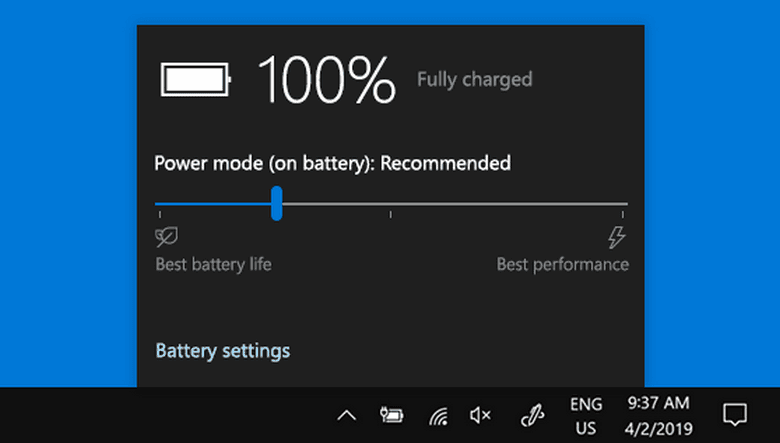
- Power Mode Selection: Open Settings > System > Power & battery. In the ‘Power mode’ section, you’ll find options like ‘Best power efficiency’, ‘Balanced’, and ‘Best performance’. Choose ‘Best power efficiency’ when you don’t need high computing power (e.g., when browsing or typing documents). Windows will automatically reduce the CPU frequency, limit turbo boost, and optimize other components for power saving.
- Battery Saver: Enable the ‘Battery Saver’ feature. You can set it to automatically activate when the battery level reaches a certain percentage (e.g., 20% or 30%). When active, ‘Battery Saver’ will aggressively limit background activity, postpone notifications, and even slightly dim the screen to extend the remaining battery life.
- Screen and Sleep Timers: Set the screen to turn off and the device to enter sleep mode in a shorter amount of time when not in use. Every second the screen is on or the system is active without interaction is wasted power.
- Dynamic Refresh Rate (DRR): For laptops with display panels that support DRR, make sure this feature is active (usually in Settings > System > Display > Advanced display). DRR allows the screen to switch between high refresh rates (for fluidity) and low refresh rates (for power saving) automatically, for example, 120Hz to 60Hz when the content is static. This is a significant power saver for modern screens.
4. External Factors and Long-Term Battery Health
In addition to software and driver aspects, there are physical factors that also directly affect efficiency and battery life.
Why It Matters: Lithium-ion batteries have a limited lifespan. The more often it experiences full charge and discharge cycles, the faster its capacity decreases. Excessive heat is the battery’s main enemy, which can accelerate the internal degradation of battery cells. Using a laptop in bed without adequate ventilation, for example, not only accelerates the battery’s capacity decline but also triggers the fan to work harder, which also drains power significantly.
How to Address It:
- Monitor Battery Health: Use the powercfg /batteryreport command in Command Prompt (as Administrator) to get a detailed report on your battery health and charge cycles. This gives you an idea of when it’s time to consider replacing the battery if its capacity has decreased significantly.
- Optimal Temperature Management: Make sure the laptop’s ventilation is not blocked. Use a cooling pad if necessary, especially when running heavy tasks. Keep the ventilation clean of dust regularly.
- Avoid Extreme Workloads Without External Power: If you know you’re going to use your laptop for heavy tasks (gaming, video rendering, code compilation) for a long time, connect to a power adapter whenever possible. This will reduce the load on the battery and extend its life. Some modern laptops even have a ‘Battery Care’ feature in the BIOS/UEFI to limit charging to 80% to extend battery life.
Conclusion: A Long-Term Investment for Optimal Endurance
Addressing battery drain issues in Windows 11 is not a one-time fix, but a philosophy of sustainable power management. As a Warteknet, I see this as taking care of a complex IT infrastructure: You have to understand every layer, from the OS kernel, drivers, applications, to the hardware itself. By proactively auditing applications, ensuring drivers and firmware are always up-to-date, optimizing power settings, and maintaining the physical health of the battery, you will not only get better battery life, but also more stable system performance and a longer device lifespan. This is a small investment of time for significant long-term benefits, keeping your productivity at its best in the modern computing era that demands efficiency in all lines.












