
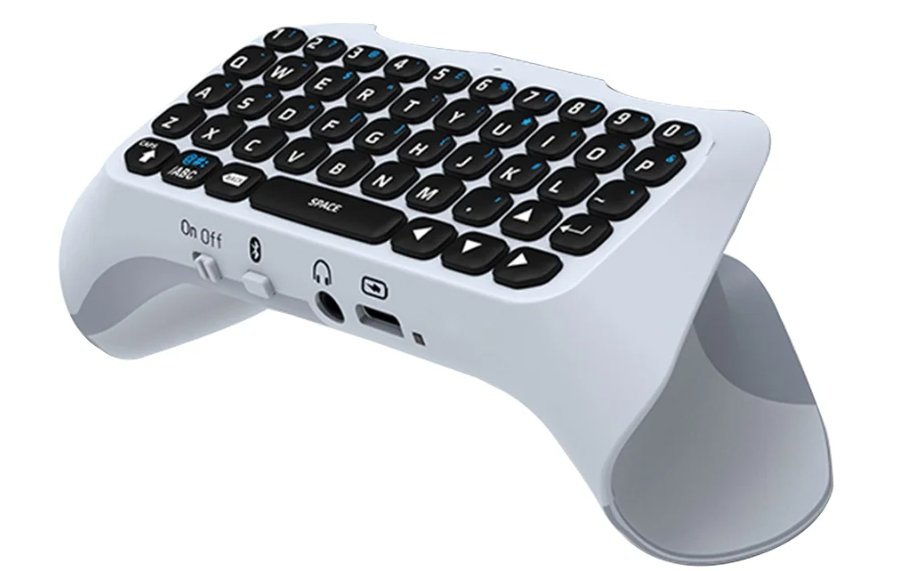
Ever wish for a quicker way to input text while gaming on your PS5? A simple solution is to hook up a USB or Bluetooth keyboard directly to your console. This not only streamlines your typing but also significantly boosts your overall gaming experience, especially if you’re big on in-game chat or frequently use apps that demand text input. Ready to get more productive? Here’s how to set up your keyboard and mouse on the PS5.
How to Set Up a Keyboard on PS5
If you prefer typing with a keyboard, you can connect a USB or Bluetooth keyboard to your PS5. Here’s how to set it up:
- Open Settings
From the Home Screen, navigate to Settings > Accessories. - Select Keyboard Settings
Under the ‘Other Accessories’ menu, you’ll find the following settings for your keyboard:- Keyboard Language
Some languages offer multiple input methods, so pick the one that suits your preference. - Key Repeat (Delay)
Determine how long it takes for a character to start repeating when you press and hold a key. - Key Repeat (Rate)
Set how quickly characters repeat when a key is pressed and held.
- Keyboard Language
Check Compatibility
Not all devices are compatible with the PS5, so always check your device’s instructions.
What’s more, you can also access keyboard settings directly through the PS5’s Control Center, making adjustments super easy even mid-game.
How to Set Up a Mouse on PS5
Beyond keyboards, you can also connect a USB or Bluetooth mouse to your PS5 for faster navigation. Here are the steps:
- Open Settings
Just like with keyboard setup, head to Settings > Accessories. - Select Mouse Settings
In the ‘Other Accessories’ menu, you’ll find these settings for your mouse:- Type
Choose between left-handed or right-handed settings. - Pointer Speed
Adjust how fast the pointer moves across the screen when you move your mouse.
- Type
Again, always ensure your mouse is compatible with the PS5. Otherwise, the device might not function correctly with your console.
How to Connect a Bluetooth Keyboard or Mouse to PS5
If you’re using a Bluetooth keyboard or mouse, here’s how to pair it with your PS5:
- Activate Pairing Mode on Your Bluetooth Device
Follow the instructions in your device’s manual to enable pairing mode. - Connect to Your PS5
Go to Home Screen > Settings > Accessories > General > Bluetooth Accessories. Your PS5 will then start searching for available Bluetooth devices. - Select the Device to Pair
Once your PS5 discovers your device, select it from the list to pair. - Confirm Connection
Once successfully connected, the device will appear in your registered devices list as ‘Connected’. - Automatic Connection
Whenever your Bluetooth device is powered on and within range of your PS5, it should automatically connect. If it doesn’t, simply go to the ‘Registered Accessories’ list, select the device, and press Connect.
Editor’s Takeaway
Hooking up a keyboard and mouse to your PS5 isn’t just about making typing a breeze; it also unlocks a more efficient and responsive gaming experience, particularly for titles that demand quick, precise interactions. Thanks to its readily accessible Bluetooth and USB capabilities, you can truly transform your PS5 into a more versatile setup, perfectly aligned with your gaming needs. So, whether you’re aiming to supercharge your in-game productivity or just looking to experiment with a new setup, connecting a keyboard and mouse is definitely a smart move.












