
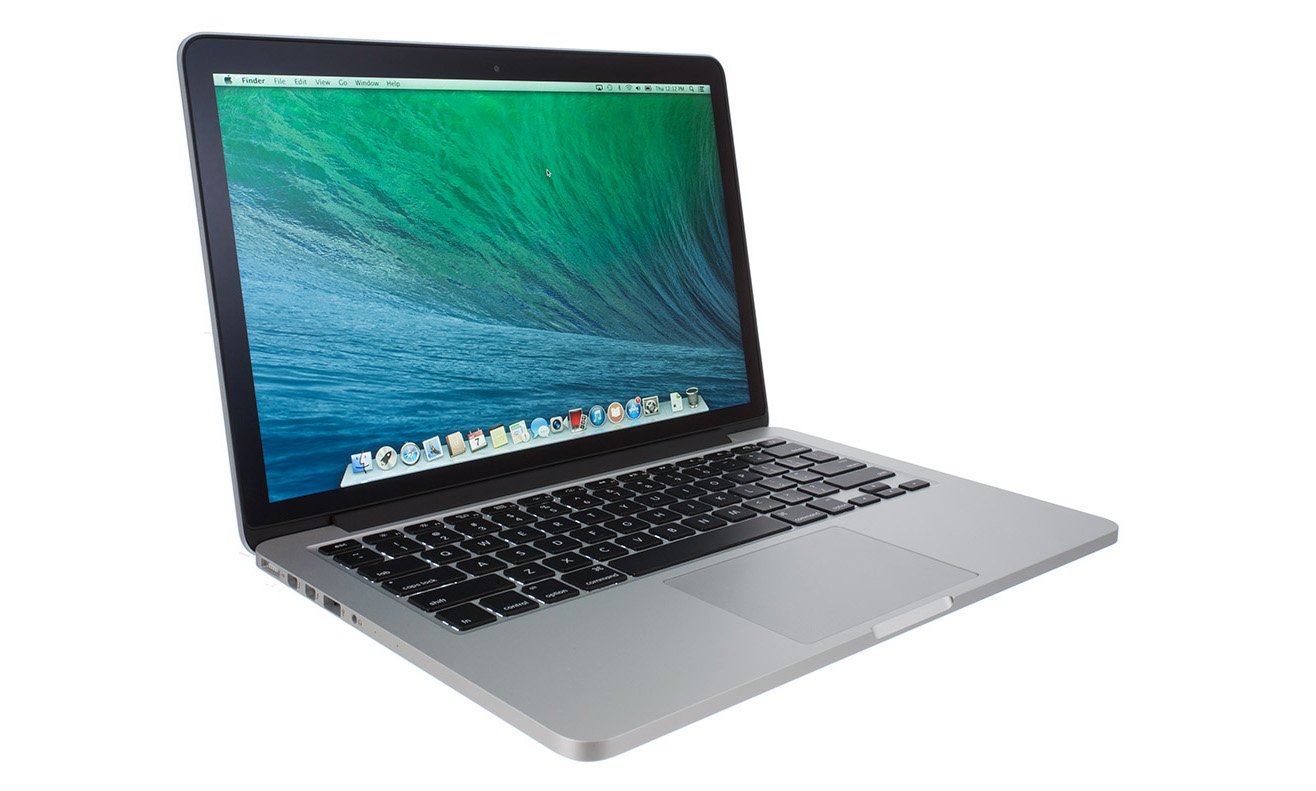
Ugh, isn’t it frustrating when your beloved MacBook, which used to be so snappy, suddenly feels like a snail? I’ve been there too! Honestly, I used to think, “Well, it’s time for this MacBook to retire?”. But, after tinkering around, trying different things, I found some powerful tricks that really brought my MacBook back to its best performance. This isn’t just theory, I’ve actually put it into practice myself, you know! Let’s uncover the secrets.
- Never Forget: Update Your macOS!Okay, this is the most fundamental but sometimes overlooked: update your macOS. Seriously, I always get excited every time there’s an operating system update. Not only does it add new features that sometimes make you go “wow”, but most importantly, Apple always sneaks in bug fixes and performance optimizations that make a noticeable difference. I’ve experienced it myself, after even a minor update, applications that used to lag became smoother. It’s really easy, just go to System Settings > General > Software Update. Oh yes, a pro-tip from me: before a major update, don’t forget to back up your data. I was unlucky once, and since then I’ve been cautious! That’s why Time Machine is my lifesaver.
- Free Up Your Storage Space, Don’t Let It Get Cramped!This is the culprit that we often don’t realize: full storage. A MacBook is like a human, if it overeats, it will move slowly. I have a benchmark, try to leave at least 15-20% free space on your SSD. I used to max out a lot, until the design applications took a long time to load. Finally, I regularly move large files, like high-resolution photo collections or video footage from my editing, to my favorite external hard drive or to my subscribed cloud service. Also, don’t be shy about deleting applications you no longer use. Honestly, I often get carried away installing new applications, but I have to be willing to delete the ones that have become decorations.
- Manage Startup Items: So Booting Isn’t Like Waiting for Coffee to Brew!Ever experienced your MacBook taking a long time to turn on? Well, that’s one sign that there are a lot of applications automatically running at startup. I used to be like that too, every time I turned on my MacBook, it felt like waiting for the coffee to brew before it was ready to use. After investigating, it turned out that many applications asked for permission to run at the beginning. It’s really easy to ‘manage’ them: go to System Settings > General > Login Items. There, you can see a list of applications that “piggyback” on startup. Just disable the ones you don’t really need. It feels great when booting is fast again!
- Reduce Unnecessary Widgets: Don’t Let Them Waste Resources!Well, this is often considered trivial: too many widgets. Initially, I really liked using widgets in Notification Center, it felt productive and informative. But gradually it increased, and then I realized my MacBook started to feel a little ‘heavy’. Apparently, these widgets also consume resources! I’m now very selective, only installing the widgets that I really use every day, like the calendar and weather. Try opening Notification Center, and “edit” the unnecessary widgets. It feels so light afterward!
- If Spotlight is Slow? Try This ‘Advanced’ Trick!Finally, this is a bit of an ‘advanced’ tip but super effective if you often use Spotlight to search for files. Ever experienced Spotlight being slow when searching for something? Or the results aren’t accurate? I have too. Until I tried the trick to rebuild the Spotlight index. Here’s how: go to System Settings > Siri & Spotlight > Spotlight Privacy. Then, you add Macintosh HD (or your main folder) to that list, wait a moment, and then remove it from the list again. This process forces Spotlight to re-index all your files. Amazingly, after that, Spotlight becomes very snappy like it was just installed. Really, this is a trick I ‘got’ from tech forums and it really works!
So, the point is, a slow MacBook doesn’t mean you have to immediately replace it with a new one. With a little ‘touch’ and routine maintenance like I’ve done, I guarantee your MacBook will speed up again and be ready to accompany you in coding, gaming, or just scrolling on the timeline. Try it, it feels like you have a new MacBook again!












