
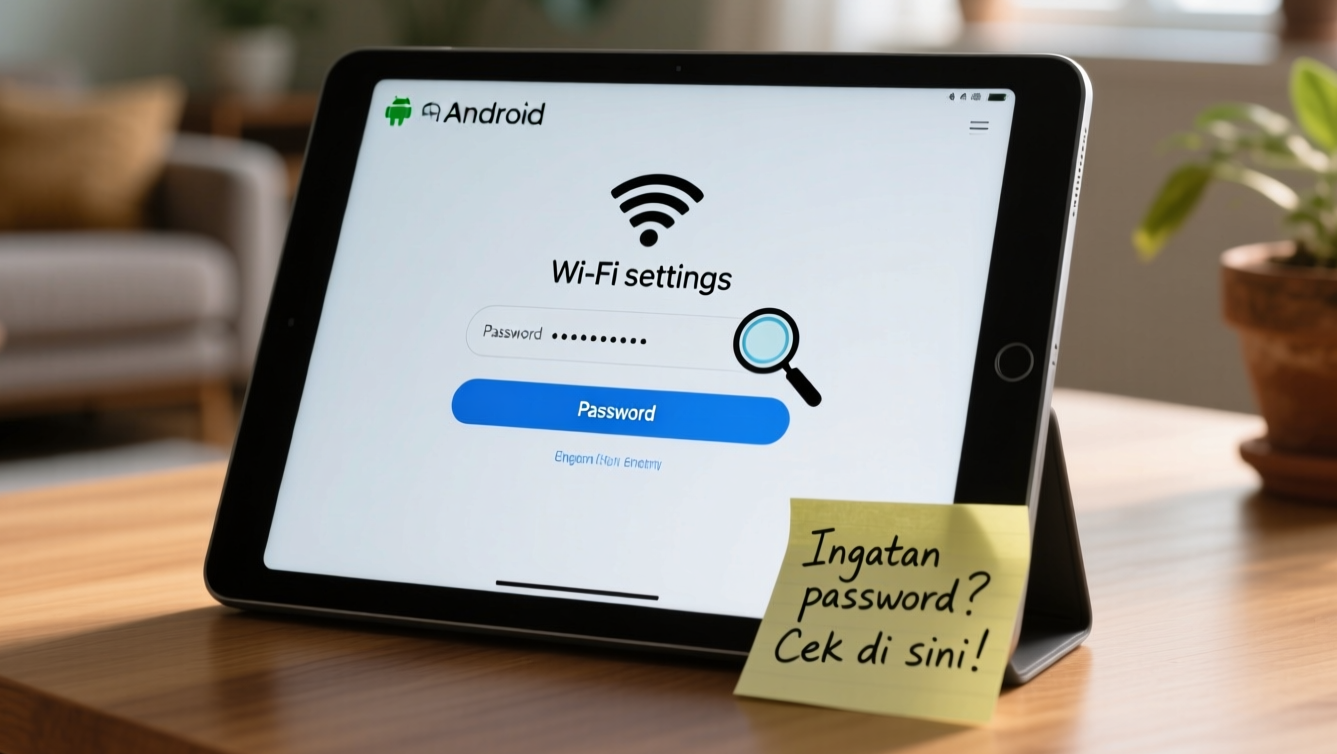
Hello to all tech enthusiasts and those of you who often forget things! Ever been in a situation where you’ve successfully connected your laptop or phone to your home WiFi, and then a friend or family member comes over wanting to connect, but you draw a blank on the password? Or maybe you just bought a new device and forgot the WiFi password that was saved on your old one?
Relax, that’s a classic problem that happens all the time! The good news is, you don’t need to panic and reset your WiFi router. There’s a clever way to “peek” at the WiFi password that’s neatly stored on your laptop or Android phone. Curious how to do it? Let’s break it down step by step!
Revealing the WiFi Password on Your Laptop or PC
This is the most common method and can be done if your laptop or PC has previously connected to the WiFi network whose password you want to know. Make sure you are connected to that WiFi network!
- First, make sure your laptop or PC is connected to the Wi-Fi network whose password you want to know.
- Click the Start button/menu (the Windows icon in the bottom left corner), then type “Wi-Fi Settings” in the search bar. Once it appears, select the “Open” option.
- In the “Wi-Fi Settings” window, you may see several options. Find and select the “Network and Sharing Center” option. This option is usually on the right side or bottom of the Wi-Fi settings window.
- The “Network and Sharing Center” settings window will open. In the “Connections” section, you will see the name of your Wi-Fi network (usually blue and underlined). Click on the name of the Wi-Fi network.
- A small window called “Wi-Fi Status” will appear. Here, click the “Wireless Properties” button.
- Next, the “Wireless Network Properties” window will appear. Select the “Security” tab.
- In the “Security” tab, you will see “Network security key” which is displayed as dots. To reveal the password, simply check the “Show characters” box. And voilà! Your Wi-Fi password will be immediately visible there.
Tip: Once you know the password, immediately write it down in a safe place or take a picture of the screen so you don’t forget it again!
How to Find Your WiFi Password on Your Android Phone
Viewing a WiFi password on an Android phone is slightly different and can vary depending on the brand and Android version you are using. However, sharing via QR code is the most common and easiest method in the modern Android era (Android 10 and above).
- Open the Settings menu on your Android phone.
- Find and select the Wi-Fi or Network & Internet option, and then go to the Wi-Fi menu.
- Touch the name of the Wi-Fi network you are currently using (the one whose password you want to see).
- On some Android phones (especially newer versions), a Share option or a QR code icon will appear at the bottom or top of the network information. Tap this option.
- For security reasons, you may be asked to verify your identity using a PIN, screen lock pattern, or fingerprint. Perform the verification.
- After verification, a QR code will appear on the screen. Now, on many modern Android phones, the Wi-Fi password will be displayed directly in text form below this QR code!
- If the password is not immediately visible below the QR code, you can use another phone to scan this QR code. Some third-party QR code scanner apps can read network information from the QR code and display the password.
Important: Remember, every Android interface (e.g., Samsung’s One UI, Xiaomi’s MIUI, OPPO’s ColorOS) has slight differences, so the location of buttons or options can vary. But the main thing is to look for the “share” or “QR code” option when you tap on the connected WiFi network.
Why is it Important to Know This?
It’s not just for showing off, but knowing this has many benefits:
- When Friends Come Over: No need to rummage through papers or guess the password. Just look, tell them, and your friends can go online immediately.
- New Devices: Buying a new phone or laptop? Just peek from your old device that’s already connected.
- Avoid Resetting the Router: Forgetting the password often leads to resetting the router, which means having to reconfigure all connected devices. With this method, you can avoid it.
Always Remember Security!
Although it’s easy, make sure you only share your WiFi password with people you trust, okay? And don’t forget to always use a strong and unique password for your WiFi network!
How is it? Super easy, right? Now you’re the WiFi guru in your home! Good luck, and hopefully, this tutorial is helpful!












