
Have you ever read an article or found a webpage full of important content that you wanted to save in its entirety? Not just the part visible on the screen, but everything. Android has a secret trick that allows you to easily take a full-page screenshot, right from your favorite browser.
Generally, to take a regular screenshot, you simply press the volume down and power buttons simultaneously. After that, options to save, share, or edit the screenshot will appear. However, if the webpage is too long, and you want to capture all of its content, there’s an additional feature you may not know about.
Steps to Take a Long Screenshot:
- Open the browser on your Android phone and navigate to the webpage you want to capture.
- As with a regular screenshot, press the volume down and power buttons simultaneously.
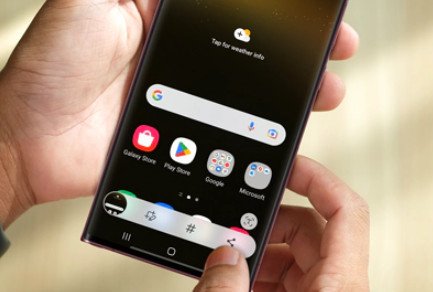
- On your screen, several options will appear. One of them is a downward-pointing arrow icon.
- Press the arrow icon, and your phone will automatically scroll the page, capturing all the content on it.
- If you want to capture more, keep pressing the arrow icon until all parts of the page are saved.
- Once finished, wait a moment, and your phone will save the extended screenshot in your gallery.
This long screenshot feature is very useful when you want to save complete guides, recipes, long articles, or even conversations on social media. This way, you don’t have to worry about missing important information hidden at the bottom of the page.
Why is This Feature Useful?
- Practical and Efficient: You no longer need to cut up screenshots into multiple parts.
- Saves Time: With just a few taps, the entire page is already saved on your device.
- Avoids Missing Information: This feature ensures you can access information anytime without needing an internet connection.
- Easy to Share: The long screenshot result can be directly shared with friends or colleagues in a single, complete image.
- User-Friendly: All the steps are simple; even new Android users can master them quickly.
This feature works very well on various Android phones, especially phones from major brands like Samsung, OnePlus, and Xiaomi. However, some phones may require a slight adjustment in settings to activate this feature.
Additional Tips:
- Don’t forget to always check the screenshot results in your gallery. Sometimes, images that are too long can appear too small when opened.
- The long screenshot feature can also be used to save important conversations in messaging applications, such as WhatsApp or Telegram.
With the ability to capture the entire page, you now have easy access to save all valuable information without having to worry about missing even a single part.
Repiw’s Conclusion:
The long screenshot feature on Android is truly the right solution for those who frequently browse the web or read long articles. With these simple steps, you can capture the entire page and save it for viewing anytime. Don’t forget to try this feature and add it to your routine when surfing the internet!












