
How to Display Your Phone Screen on a Mac and Windows Laptop: A Complete Guide
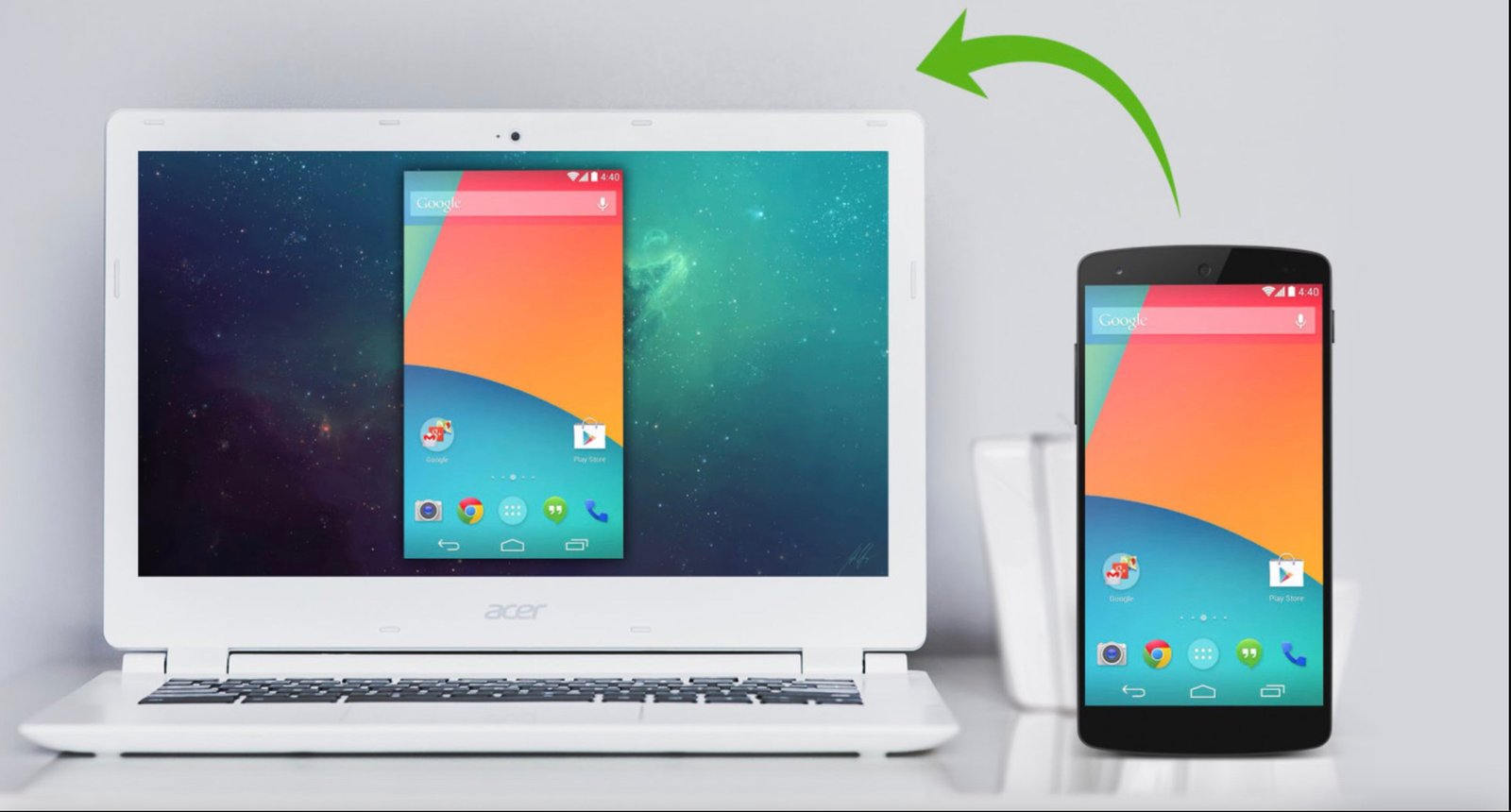
Screen mirroring is a feature that allows the display of a phone screen to be transferred to another device, such as a laptop or smart TV. This is very useful for presentations, sharing content, or simply enjoying the phone screen on a larger display. This process usually requires specific applications that allow both devices to connect and perform mirroring in real-time.
Importance of a WiFi Connection
For wireless screen mirroring, a stable and fast WiFi connection is crucial. High data transmission speeds allow every screen movement between devices to occur in real-time and minimize lag or delayed movements.
Steps to Connect Your Phone to a Laptop
There are several applications that can be used to connect your phone to a laptop. Here are some popular applications and how to use them.
- Using AirDroid Cast
- Download and install the AirDroid Cast application on your laptop and smartphone.
- Make sure both devices are connected to the same WiFi network.
- Open AirDroid Cast on your laptop, and a QR code and number will appear.
- Open AirDroid Cast on your phone, then scan the QR code or enter the number displayed on the laptop.
- Grant the necessary permissions when the notification appears on your laptop.
- Tap “Start Now” on your phone.
- Your phone screen will connect to your laptop.
- Using APowerMirror
- Download and install the APowerMirror application on your laptop and phone.
- Open the application on your laptop, then select the Android option. A QR code will appear on the screen.
- Open APowerMirror on your phone and scan the QR code displayed on the laptop.
- Your phone will mirror to the laptop screen.
- Using Vysor
- Download and install the Vysor application on your laptop and phone.
- Enable the USB Debugging feature on your Android phone, then connect your phone to your laptop with a USB cable.
- The Vysor application will automatically detect the device. If not, click “Find Device” and select the device you want to connect.
- Click “View” to start mirroring.
- Vysor will open a new window to display your phone screen on your laptop.
- Using Zoom
- Download and install the Zoom application on your laptop and phone.
- Log in to your Zoom account on your phone.
- On your phone, go to the “Meetings” section and tap “Send Invitation.”
- Send an invitation to yourself via WhatsApp or email to access on your laptop. You can also share the invitation with others.
- On your laptop, click the invitation link that has been shared. Do not log in to Zoom with the same account on your laptop.
- After entering the meeting room on your laptop, you can see the display of your phone screen on your laptop.
AirDroid Cast is a free mirroring application that allows you to connect your phone to your laptop. Here are the steps:
APowerMirror works similarly to AirDroid Cast. The process is as follows:
Vysor is a mirroring application that can use a wireless connection or a USB cable. Here’s how to use it:
Zoom, an online conferencing application, can also be used for screen mirroring. This is very useful during presentations. The steps are:
Repiw Conclusion
Screen mirroring from your phone to your laptop is now easier with various free applications available. From AirDroid Cast to Vysor, each application has its own advantages and ways of working. Make sure you have a stable WiFi connection to avoid lag and maximize the mirroring experience. With these simple steps, you can easily enjoy your phone screen display on your laptop, whether for work, presentations, or just entertainment.
Hopefully, this article helps you in displaying your phone screen on your laptop easily. For other tech tips, visit our website at repiw.com!












