
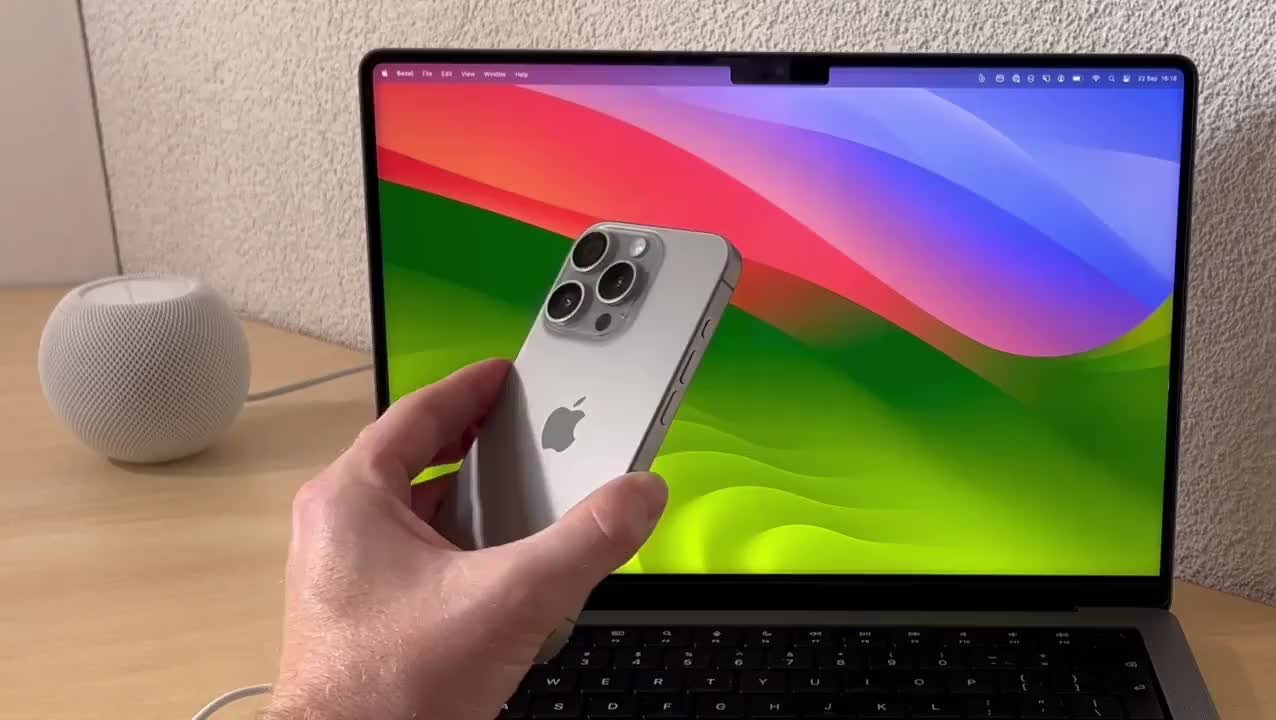
Sharing your iPhone screen to a MacBook is a cool trick that makes it easy to display content from your iPhone on a larger screen. This is useful for presentations, showing photos and videos, or simply enjoying mobile games with a more expansive view. There are several practical ways to do this, ranging from using AirPlay to cables.
Using AirPlay to Share Your Screen:
AirPlay is one of the simplest ways to mirror your iPhone screen to your Mac. However, this feature is only available for iPhone 7 or later models and requires iOS 14 or higher. In addition, the Mac being used must also support macOS Monterey or a later version. So, if you’re using a MacBook, MacBook Pro, MacBook Air (2018 and later), Mac mini (2020 and later), iMac, Mac Pro (2019 and later), iMac Pro, or Mac Studio (2022), you can take advantage of this feature.
First, make sure your iPhone and Mac are connected to the same Wi-Fi network. Then, swipe down from the top-right corner of your iPhone to open Control Center, and tap the Screen Mirroring icon. Select the Mac device you want to use, and voila! Your iPhone screen will appear on your Mac screen immediately.
However, there are some limitations. AirPlay to Mac does not support direct streaming from third-party apps like Netflix or Disney+. But don’t worry, you can still access that content through the web version or the Mac application. As for built-in iOS apps like Photos, you can display media directly with AirPlay.
Steps for Mirroring via Photos:
- Open the Photos app on your iPhone.
- Tap the Share button in the bottom-left corner.
- Select the AirPlay option.
- Choose the Mac device you want to use.
If your iPhone or Mac uses an older version of the operating system, AirPlay can still be used, but with lower resolution. Make sure the AirPlay Receiver feature is active and the Allow AirPlay option is enabled for a smooth mirroring process.
Using Cables for a Stable Connection:
If you want a more stable solution, using a cable might be the right choice. You only need a Lightning or USB-C cable to connect your iPhone to your Mac and use QuickTime Player to display the iPhone screen.
Here’s how to get started:
- Connect your iPhone to your Mac using a Lightning or USB-C cable.
- Open the QuickTime Player app on your Mac.
- Select the New Movie Recording option from the menu at the top.
- Click the small arrow next to the record button to select your iPhone as the camera.
- (Optional) For the best quality, select the maximum resolution.
If the iPhone screen doesn’t appear immediately, try unplugging and reconnecting the cable. If your Mac uses USB-C ports, you may need a dongle for the Lightning or USB-C cable to connect. Products like the Satechi USB-C Slim Dock can be a solution to this problem.
Review Conclusion:
Whether through AirPlay or a cable, sharing your iPhone screen to a MacBook can be done quickly and easily. Choose the method that best suits your needs, and enjoy a larger screen display for various purposes. These tips will help maximize your experience when using Apple devices.












