
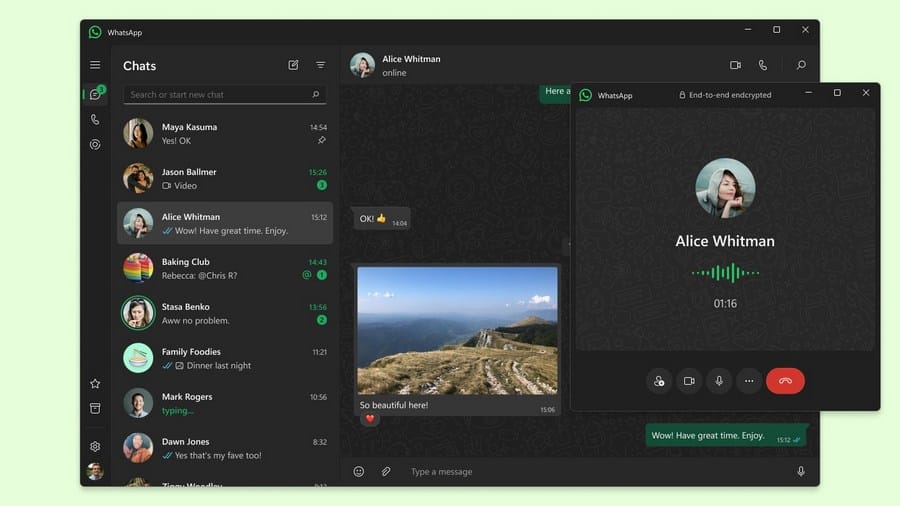
A New Era of Communication with WhatsApp Desktop
In the midst of the rapid dynamics of work and digital communication, instant messaging applications have become an inseparable tool. WhatsApp, as the most dominant platform, continues to innovate. In 2025, the WhatsApp application for desktop has evolved into more than just a phone extension; it is a self-contained communication center designed for productivity. This is why users need to understand how to utilize it optimally: to simplify workflows, increase efficiency, and maintain focus without having to switch devices.
Easy Steps to Install WhatsApp Desktop on Windows and macOS
Integrating WhatsApp into your daily computing experience is now easier than ever. The installation process is designed to be fast and intuitive, ensuring you can connect immediately. Here’s a step-by-step guide:
- Visit the Official Website: Open your web browser and navigate to whatsapp.com/download. The system will automatically detect your device’s operating system.
- Download the Application: Select and download the appropriate installation file for Windows (64-bit) or macOS. Make sure to download from an official source for security.
- Run the Installation: Once the download is complete, open the downloaded file (usually ending in .exe for Windows or .dmg for macOS) and follow the on-screen instructions. This process generally only takes a few clicks.
- Device Synchronization: After a successful installation, open the WhatsApp Desktop application. You will be presented with a QR code. Take your phone, open the WhatsApp application, tap the three-dot menu (for Android) or Settings (for iPhone), select “Linked Devices,” then tap “Link a Device” and scan the QR code.
Why This Is Important for Users: WhatsApp’s mature multi-device feature ensures seamless and independent synchronization. This means that, once connected, WhatsApp on your desktop can function fully even if your phone is not connected to the internet, providing unlimited flexibility to reply to messages, share files, or make calls from a larger screen and physical keyboard.
Boosting Productivity with WhatsApp Desktop’s Superior Features
The desktop application is not just about convenience, but also about increased efficiency. Utilizing the following features can significantly speed up your workflow:
- Master Keyboard Shortcuts for Quick Navigation
Using keyboard shortcuts is the most efficient way to navigate the application without taking your hands off the keyboard. This saves you valuable time.
- Ctrl/Cmd + N: To start a new chat.
- Ctrl/Cmd + Shift + [: Move to the previous chat.
- Ctrl/Cmd + Shift + ]: Move to the next chat.
- Ctrl/Cmd + Shift + M: Mute the chat.
- Ctrl/Cmd + E: Archive the chat.
Why This Is Important for Users: Mastering these shortcuts allows you to respond to messages, switch between conversations, and manage notifications at high speed, keeping your focus on the main tasks without excessive visual or manual interruptions.
- Efficient Notification Management
Distraction is the enemy of work productivity. WhatsApp Desktop provides tools to manage notifications so they don’t disrupt your focus.
- Mute Chats: Right-click on a chat (individual or group) and select “Mute” for a specific period of time or forever.
- Disable Desktop Notifications: You can also disable all notifications from the application settings if you need full concentration.
Why This Is Important for Users: The ability to set or mute specific notifications is crucial. This minimizes unnecessary distractions from busy chat groups or less relevant contacts when you are in the middle of important work, allowing you to stay focused and reduce context switching.
- Fast File Transfers with Drag and Drop Feature
Sharing documents, images, or videos from your computer to WhatsApp is now as easy as dragging and dropping.
Simply drag the file from your folder and drop it directly into the active chat window. The file will automatically be attached and ready to send.
Why This Is Important for Users: This feature eliminates the complicated steps often required when transferring files from a phone. For professionals who frequently share documents and digital assets, this is a significant time-saver and simplifies collaboration.
Conclusion: WhatsApp Desktop as a Productivity Partner in 2025
With the evolution of its features and increased stability through May 2025, WhatsApp Desktop has become an indispensable communication tool for anyone who spends most of their time in front of a computer. With easy installation and a set of productivity tips designed for efficiency, this application not only keeps you connected but also empowers you to work smarter, not harder. It’s a small investment in your workflow that will provide great benefits in the long run.












