
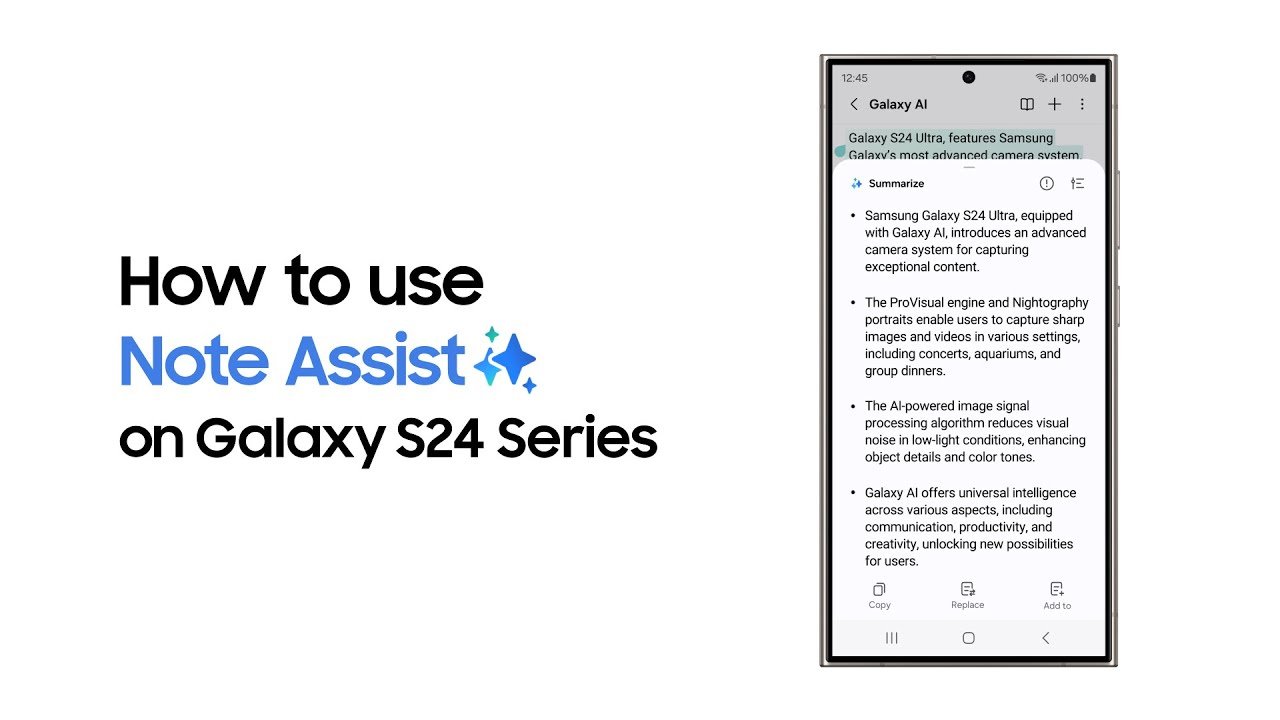
Samsung Notes is an extremely versatile tool, especially if you’re a Samsung Galaxy S24 Ultra or Galaxy Z Fold5 user. This application isn’t just a regular note-taking app; it’s also a platform that can help you increase productivity with various advanced features. Here are 10 practical tips to maximize the use of Samsung Notes.
- Quick Note-Taking and Organization with AI Assistance
- Switching Between Pen, Highlighter, and Eraser
- Customize Page Templates and Background Colors
- Convert Handwriting to Text
- Import Images or PDFs
- Add and Transcribe Audio Recordings
- Rearrange Pages
- Save in Different File Formats
- Organize Your Notes
- Collaborate
When you’re in a pressing situation, such as having to answer a call or attend a sudden meeting, taking notes on paper often risks being lost. With the Galaxy S24 Ultra or Galaxy Z Fold5, you can immediately create notes using the S Pen without having to unlock the phone. In fact, with Flex Mode on the Z Fold5, you can take notes while conducting a video conference. The Galaxy AI features equipped with Note Assist and Transcript Assist also help organize and summarize notes and create automatic transcripts of your meeting audio recordings.
Samsung Notes allows you to easily switch between various pen types, highlighters, and erasers through the application’s toolbar. You can customize the type, thickness, and color of the pen according to your needs. There is also a feature to add favorite pen styles for quicker access. Erasing writings is as easy as holding the S Pen button.
To keep ideas fresh, you can choose various types of paper, such as graph paper or to-do lists, and customize the background color. With this option, you can choose the appearance that best suits your note-taking needs. You can even save notes on a single long canvas, instead of separate pages, for more flexible management.
No need to retype handwritten notes anymore. Samsung Notes allows you to convert handwriting directly into text. This feature can be accessed through the keyboard icon or through drawing mode, and the results can be exported directly to Microsoft Word files.
If you need to mark changes or provide annotations on images or PDFs, Samsung Notes allows you to import them directly into the application. You can also add sketches or other visuals, making this application very useful for creative collaboration.
Conveying ideas verbally is often easier than writing or typing. Samsung Notes allows you to add audio recordings directly to notes, which can then be converted into text transcripts with the help of Transcript Assist. This feature makes it easy to record and share your thoughts.
For multi-page notes or storyboards, Samsung Notes provides a feature to rearrange pages so that your ideas are presented in a logical order. Simply drag and drop pages as needed, making note management more intuitive.
Samsung Notes supports exporting notes to various file formats such as PDF, Word, PowerPoint, or images. You can also save files to the cloud or send them as email attachments, making them easily accessible from various devices.
Managing your notes becomes easier with the category and color code organization features. You can quickly search for notes, sort by date or title, and even pin important notes to your device’s home screen.
Samsung Notes also supports collaboration. You can create a Shared Notebook to work with your team in real-time. The synchronization feature with Microsoft OneNote and the availability of the application on Windows 10 PCs keep your notes always updated on all devices.
Samsung Notes, along with the S Pen and the latest Galaxy devices, provides greater flexibility and productivity. From jotting down ideas on the go to collaborating with a team, this tool makes the note-taking process easier and more efficient.












