
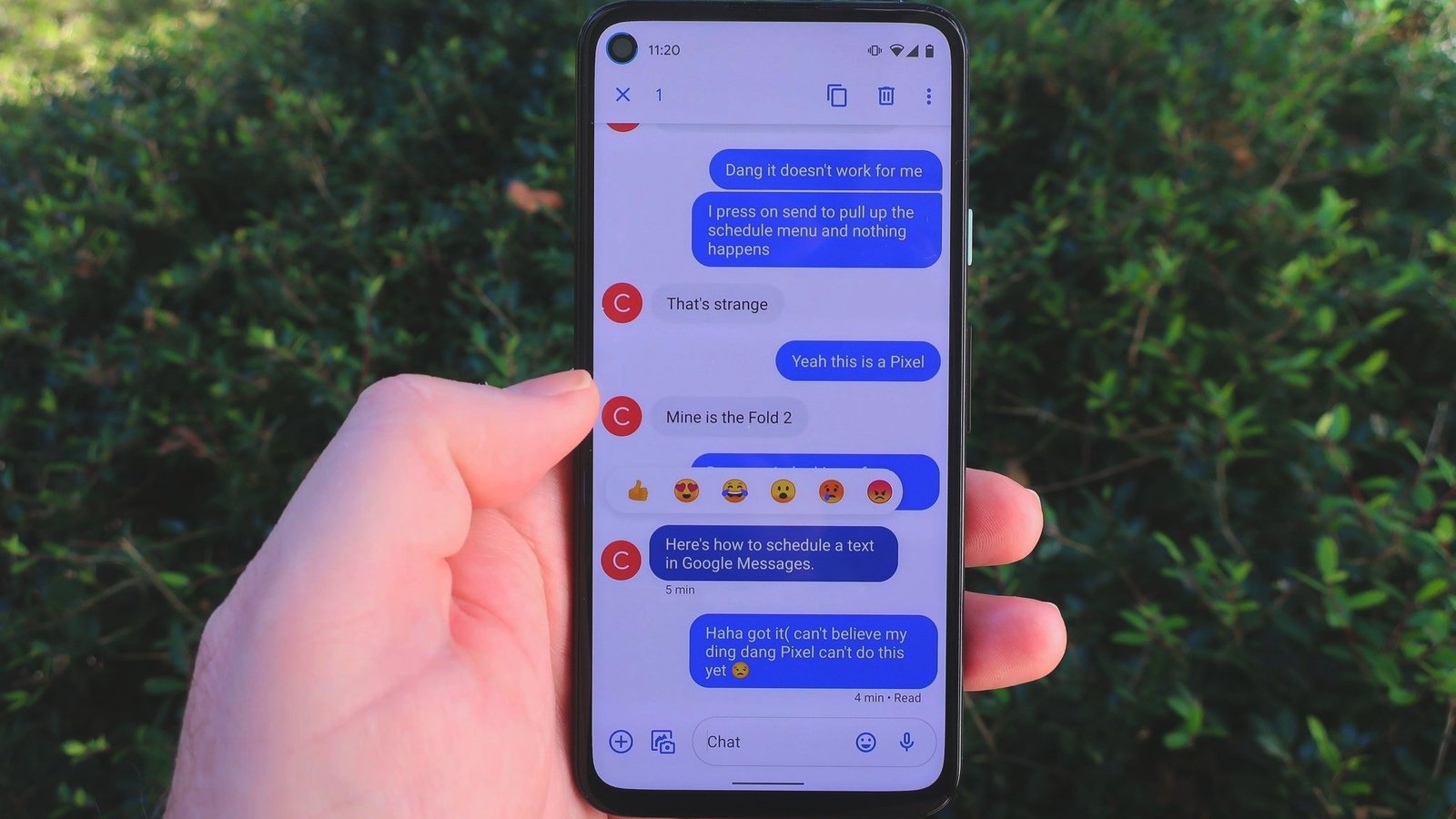
Google Messages is the default messaging application for Android devices, also available on Wear OS. As an answer to Apple’s iMessage, Google Messages combines SMS, instant messaging, and RCS (Rich Communication Services) technologies to offer more advanced and secure messaging services.
Although it has been around for a decade, this application now comes with new features such as end-to-end encryption, group chats, emoji reactions, and more, making it comparable to popular instant messaging applications like WhatsApp and Signal.
This article will discuss some interesting features of Google Messages that can help enhance your messaging experience on Android.
-
Send Free Messages via Wi-Fi with RCS
One of the flagship features in Google Messages is the ability to send messages via RCS Chat. This feature allows you to send messages at no cost using Wi-Fi or mobile data, which is very useful when you don’t have access to a cellular network or want to save your SMS package. To activate this feature, follow these steps:
- Open the Google Messages application.
- Select the profile icon at the top right to open the settings.
- Go to “Message settings”.
- Select “RCS Chat”.
- Activate the “RCS Chat” option by tapping the slider.
However, it should be noted that this feature requires an active phone number. If your device is only connected via Wi-Fi without a SIM card, RCS messages cannot be used.
-
Bubbles: Prioritize Important Conversations
Google Messages also features “Bubbles” which allows you to display important conversations in bubble form on the main screen. This feature makes it easier for you to follow conversations without having to open the application every time there’s a new message. Here’s how to activate it:
- Go to “Message settings”.
- Select the “Bubbles” option.
- Activate “Selected conversations can bubble”.
This feature is very helpful if you frequently message people close to you, such as your partner or coworkers. These bubbles will appear on the main screen, making it easier for you to reply to messages without disturbing other activities.
-
Send Photos with Low Resolution for Maximum Speed
When the internet connection is slow, you might have difficulty sending high-resolution photos. Google Messages offers the option to automatically compress images before sending them. This feature allows photos to be sent faster without having to wait a long time. To activate it:
- Open the Google Messages application.
- Select “Message settings”.
- Activate “Send photos faster”.
This feature is activated by default on some Android devices, but you can always turn it off if you want to send images in high resolution.
-
Display Expressive Emoji Animations
For users who like to use emojis, Google Messages presents the “Expressive Animations” feature. Emojis like thumbs up, hearts, or laughing emojis will appear with more attractive animations. However, if you feel these animations appear too often, you can disable them through the settings.
- Open Google Messages.
- Select “Message settings”.
- Turn off the “Show expressive animations” option.
This feature can make conversations more lively, but for some users, too many animations might feel excessive.
-
Automatically Delete OTP Messages
Google Messages also helps reduce clutter in your inbox by automatically deleting OTP (One Time Password) messages after 24 hours. OTP messages usually contain verification codes that are only valid for a few minutes and are often forgotten after use. Deleting them automatically is a practical way to keep your inbox tidy.
To activate this feature:
- Open Google Messages.
- Select “Message settings”.
- Activate the “Delete OTP after 24 hours” option.
This feature is very useful for those who frequently receive OTPs from banking services or when logging into websites.
-
Personalize Conversation Bubble Colors
Another interesting feature is the ability to change the conversation bubble colors in Google Messages. This allows you to distinguish important conversations with a more unique appearance. To change the color:
- Open a conversation in Google Messages.
- Select the three-dot icon at the top right.
- Select “Change color”.
- Select the desired color and confirm.
This feature gives a personal touch to each conversation, making the messaging experience more enjoyable.
-
Photomoji: Turn Photos into Emojis
One of the latest features in Google Messages is Photomoji. This feature allows you to turn photos into emojis that can be sent as messages. You can select images from the gallery, and Google Messages will turn the subject of the photo into a funny and unique emoji sticker.
To use Photomoji:
- Open a conversation in Google Messages.
- Select the emoji icon.
- Select “Create” and choose an image from your gallery.
- Send the Photomoji that has been created.
This feature provides a creative new way to communicate, going beyond text and regular emojis.
Repiw Conclusion
Google Messages is not just an ordinary messaging application. With RCS integration, Bubbles features, Photomoji, and various personalization options, this application provides a modern and dynamic messaging experience. These features allow you to stay connected in a faster, more secure, and more enjoyable way. So, if you haven’t maximized the potential of Google Messages, now is the time. Enhance your messaging experience by trying out features that you might not have known before.












