
Introduction: Why Laptop Battery Life Is Now More Than Just a Number
In an era of high mobility, battery life has transcended mere convenience; it has become a fundamental determinant of a laptop’s productivity and operational continuity. Whether you’re a professional relying on your device for heavy computing, a gamer demanding peak performance, or a casual user seeking efficiency, the dilemma of rapidly depleting battery life is a universal challenge. But to what extent do we understand “why” a battery drains quickly and “how” we can proactively manage power consumption for long-term impact?
The increased focus on power efficiency is also reflected in operating system innovations. Microsoft, for example, has recognized the importance of this by introducing Energy Saving Mode in Windows 11 Insider Preview (Build 26002). This feature isn’t just another battery saver; it’s designed to “extend and enhance” existing options, even allowing desktop users to conserve electricity. This signals a paradigm shift, from merely extending usage by a few hours, to a more holistic and strategic energy management. Let’s delve deeper into five key strategies that, if applied correctly, will not only extend your daily battery life but also enhance the overall endurance and lifespan of your device.
Windows Power Management Foundation: Understanding ‘Best Power Efficiency’ and Recent Innovations
- Optimal Utilization of Windows Power Profiles
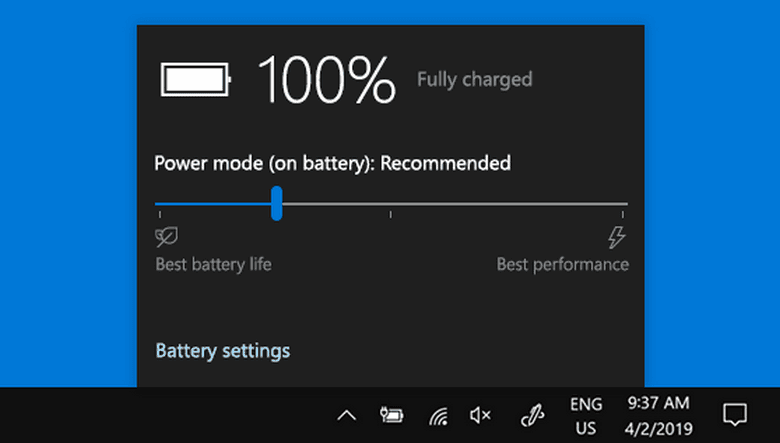
The most fundamental step in power management lies in your hands through the operating system settings. Windows provides power profiles that dynamically adjust resource allocation. The ‘Best Power Efficiency’ mode isn’t just a label; it’s an instruction to the system to prioritize power consumption reduction through various internal mechanisms. This includes throttling CPU and GPU frequencies, optimizing background task cycles, and adjusting other parameters to minimize energy usage without sacrificing stability. Why is this important? Because this power profile is your frontline defense against unnecessary battery drain, ensuring core components operate at the highest energy efficiency levels as needed. - Managing Wireless Connectivity: An Often Overlooked Energy-Saving Strategy
Wireless connectivity modules such as Wi-Fi and Bluetooth are among the hidden “power drains” often overlooked. When active, the radio frequency (RF) transceivers on these modules continuously scan for available networks or devices, even when not connected. This scanning and connection maintenance process requires electrical power, which, although small, can accumulate into a significant battery drain over time. Turning off Wi-Fi and Bluetooth when not in use is a simple yet highly effective strategy. It’s not just about stopping data transfer, but about deactivating the RF circuit activity that constantly searches for and maintains signals, thereby directly reducing the load on your battery. - Reducing Screen Brightness and Keyboard Backlight: The Cumulative Effect on Power Consumption
The screen is one of the highest power-consuming components on your laptop. The backlight technology on LCD panels, in particular, requires substantial energy to produce the desired brightness level. The higher the brightness, the more power is needed. Likewise, with keyboard backlights; although seemingly trivial, each small illuminated LED contributes to the total power consumption. Why does this matter? Because every increase in brightness level means an increase in electrical load that translates directly into accelerated battery drain. Adjusting the screen brightness to a comfortable yet not excessive level, as well as turning off or reducing the brightness of the keyboard backlight, are micro-steps that cumulatively have a macro impact on your battery life. - Taming Background Applications: Unraveling Unexpected Sources of Power Drain
Many modern applications are designed to run in the background, performing data synchronization, receiving notifications, or updating information periodically. Although the goal is to provide a seamless experience, these background activities continuously use CPU cycles, RAM, and even network I/O, all of which require power. Why is this important? Because every running process, no matter how small, will draw energy from the battery. Windows provides granular control for managing application activity in the background through battery settings, allowing you to limit which applications are allowed to operate behind the scenes. By identifying and limiting “power-hungry” applications, you can significantly reduce the hidden workload on the processor and memory, thereby conserving battery power. - Maximizing Graphics Settings: Balancing Performance and Efficiency
For laptops equipped with two types of graphics chips — Integrated Graphics Processing Unit (iGPU) and Discrete Graphics Processing Unit (dGPU) — graphics management is key. The iGPU (usually part of the CPU) is designed for power efficiency and is suitable for everyday tasks. Meanwhile, the dGPU (a separate graphics card) offers much higher performance but also with much greater power consumption. Why is it important to manage this? Because by default, or if not set, the system may use the power-guzzling dGPU for light tasks that the iGPU could actually handle. Through Display Settings or the graphics driver control panel (e.g., NVIDIA Control Panel or AMD Radeon Software), you can specify which applications should use the dGPU and which are sufficient with the iGPU. This strategy ensures that the high-power-consumption graphics unit is only active when high performance is truly needed, maintaining an optimal balance between battery life and visual capabilities.
Conclusion: Small Investment, Big Long-Term Impact
Managing your Windows laptop’s battery life isn’t just about adding a few minutes of usage; it’s about adopting a proactive mindset towards energy efficiency. Every step we take—from optimizing system power profiles, managing wireless connectivity, adjusting brightness, to controlling background applications and graphics settings—collectively contributes to device endurance. The impact goes beyond daily battery life; it helps maintain battery health in the long run, reducing cell degradation, minimizing heat emissions (which also affects other components), and ultimately extending the operational lifespan of your laptop. With a deep understanding of the “why” behind each of these strategies, you become not only a savvy user, but also an effective energy manager, ensuring your device is always ready to face the challenges of modern mobility.












