
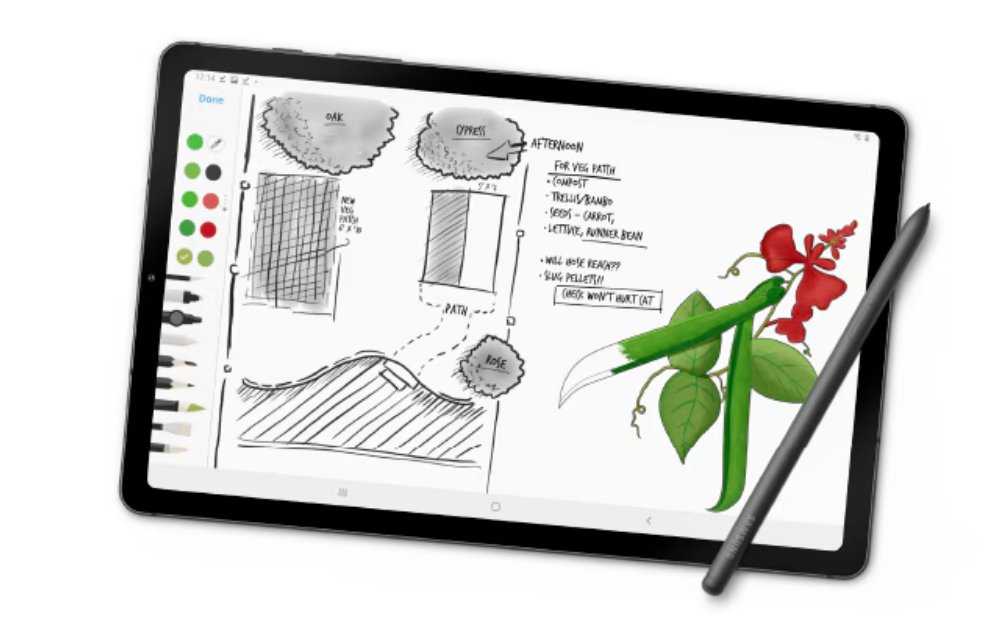
Taking notes can be one of the best ways to remember material, organize thoughts, and increase productivity.
However, unfortunately, many people find the note-taking process boring. Well, to make your notes more engaging and your learning process less boring, you can utilize the Samsung Galaxy Tab S6 Lite.
According to Annisa Maulina, Senior Manager of Product Marketing MX at Samsung Electronics Indonesia, taking notes with the Galaxy Tab S6 Lite is more fun and optimal. This tablet comes with an S Pen that is comfortable to hold, low latency, and very responsive. With the Samsung Notes app, taking notes and reviewing them becomes an enjoyable experience.
Tips for Maximizing the Galaxy Tab S6 Lite for Note-Taking
- Turn On Your Tablet Like Opening a Notebook
If you’re already in class, just take the tablet out of your bag and start taking notes directly with the S Pen in Samsung Notes. Even if you’re late for class, the Screen Off Memo feature allows you to take notes directly even when the screen is off. Practical, right? All your notes are automatically saved in Samsung Notes.
Want to start taking notes from scratch? Here’s how:
- Open the Samsung Notes app, tap the pencil icon in the bottom right corner to add a new file.
- Choose the page style you like by tapping the three lines in the top right corner, then select “Page Template.”
- Customize the page color to match your mood through “Page Settings.”
With various color options ranging from pastel to black, your notes can look more engaging and not monotonous.
- Create Aesthetic Notes
The fun part begins now! With the S Pen, you can write with various pen modes as desired. Here’s how:
- Tap the note page until the Toolbar appears, then double-tap the pencil icon to open “Pen Mode.”
- Choose the pen you like, adjust the thickness and color, then start writing.
You can also highlight important points with the Highlighter icon which has 4 different types. Want your handwriting to look neater? Easy! Tap “Convert to text” to change handwriting into digital text. If your writing is a bit slanted, tap the “Straighten” icon to straighten it.
To make the writing more engaging, you can change the color or thickness of the writing by highlighting the word you want to change, tapping “More options,” and then selecting “Change style.”
- Add Supporting Elements
To make your notes not only aesthetic but also functional, you can add supporting elements such as images, videos, or sketches directly on the Samsung Notes page. Here’s how:
- Tap “Insert” (paper clip icon), then select the file you want to insert, such as photos, PDFs, or audio recordings.
After the supporting elements are in, you can adjust the position and add descriptions using the S Pen. This way, your notes are easier to remember and understand.
A Tablet That Has Everything
The Galaxy Tab S6 Lite offers everything you need to learn and take notes comfortably. The 10.4-inch screen with a resolution of 2000 x 1200 (WUXGA+) provides ample space for taking notes, while its weight of only 465g makes it easy to carry anywhere. Plus, the long-lasting 7,040mAh battery ensures you can study all day without the hassle of finding a power outlet.
Not only that, the performance of this tablet remains optimal when you use it for various activities, from taking notes to playing games. The sound produced by the dual speakers from Dolby Atmos and the sound from AKG also makes your learning experience more enjoyable. With the Galaxy Tab S6 Lite, note-taking activities are not boring.












