
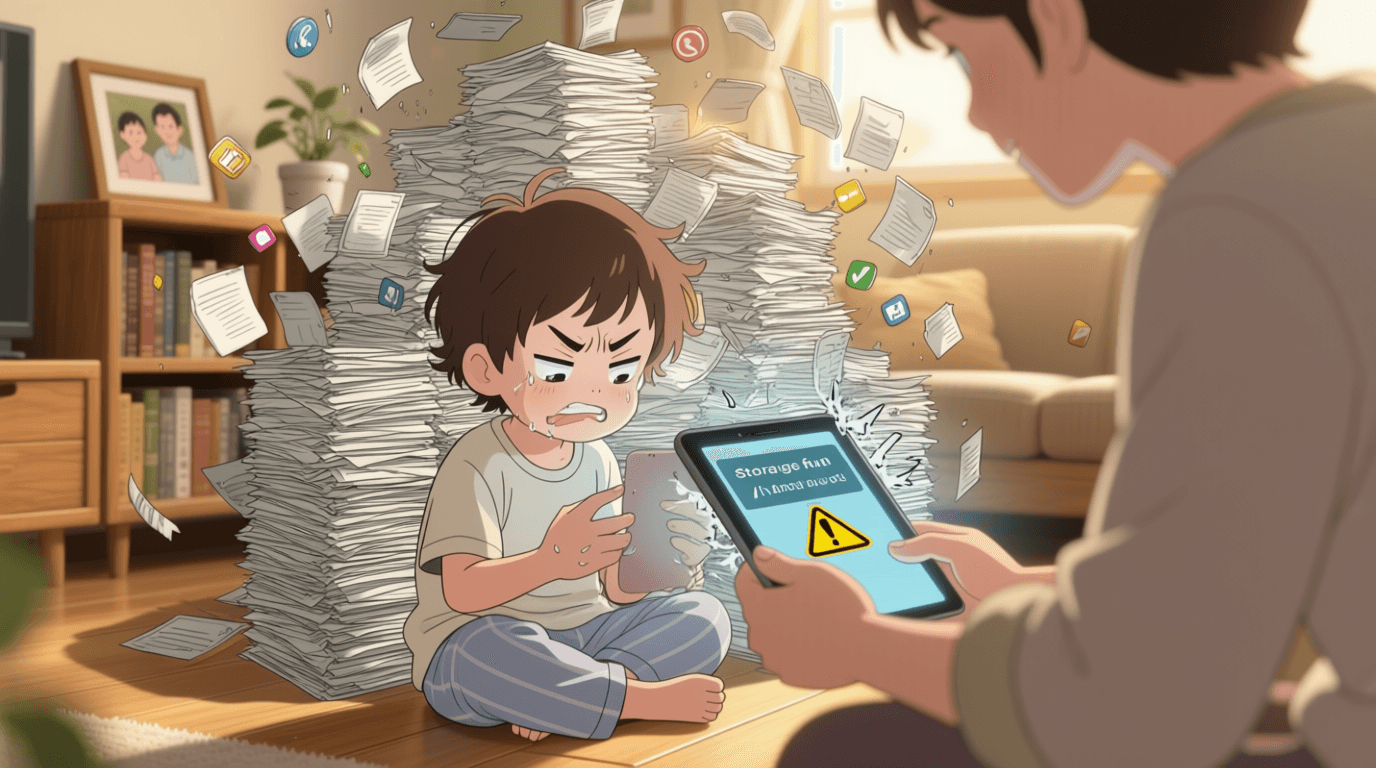
Hey everyone, ever get that frustrating notification, “Storage Almost Full,” right when you’re about to install a new game or update your OS? Makes you want to throw your phone, doesn’t it? I’ve been there countless times! Especially when your phone starts lagging, apps take forever to load – it’s infuriating! But don’t worry, as a tech enthusiast who’s seen it all in the gadget world, I’ve got some surefire tricks to bring your Android phone back to life. Here are 5 types of ‘junk’ that are safe and absolutely essential to clean up!
- Delete Duplicate/Bad Photos & Videos – The Storage-Guzzling King!
- Unused Apps – The Useless Background Burden!
- Old Downloads – The Mystery Warehouse Filled with Unnecessary Memories!
- App Cache Data – The Secret Sweller!
- Offline Maps & Chat App Media – The Monster That Devours Data & Storage!
Admit it, who here takes multiple shots to get the perfect photo? Me! As a result, dozens of duplicate or blurry photos pile up in my gallery. Not to mention those random, useless screenshots. Honestly, this is a major culprit for a full storage!
The solution is super easy! If you use Google Photos, try the “Free up space” feature or check the “Suggestions” section. It’s usually very good at pointing out duplicate photos or ones with poor quality. Many built-in phone gallery apps now also have an automatic duplicate ‘cleaner.’ Or, if you prefer manual, take a moment, scroll through your gallery, and delete the unnecessary ones. But remember, before deleting, make sure you’ve backed up important photos or videos to Google Drive, Google Photos, or another cloud service. Don’t end up regretting it like I did when I once lost precious moments because I was too trigger-happy with the delete button!
This is the bane of our existence! Downloading apps left and right, only to use them once or twice and then forget about them. Like discount apps for specific events, or games that are only fun in the beginning. These ‘ghost’ apps not only take up space, but many of them run sneakily in the background, sucking up RAM, CPU, and, worse yet, your battery! It’s like having a parasite in your phone.
How to find them? Easy! Go to ‘Settings’ > ‘Apps’ (or ‘Apps & Notifications’). There, you can sort by ‘size’ or ‘last used date’. If there are apps you haven’t touched in months, you can’t even remember when you last opened them, uninstall them immediately! You can always download them again if you need them later. Your phone will instantly feel lighter!
The “Downloads” folder is like a ‘mystery warehouse.’ We often download all sorts of files: expired movie ticket PDFs, college assignment documents that have already been submitted, or even APK files of games that failed to install and were forgotten. Over time, these files pile up and can make your phone sluggish.
I have a routine of checking this folder once a week. Just open the ‘File Manager’ app or ‘Files by Google’, then go to the ‘Downloads’ folder. Look at each file one by one. If it’s no longer important, just delete all! Don’t hesitate. Feel the relief after cleaning up!
Every app stores temporary data, or what we know as cache. The purpose is good, to make the app load faster when opened again. But, if left unchecked, this cache can swell up to gigabytes! This is the main cause of a slow phone and quickly filled storage, you know!
There are two methods I often use. First, clean up per app. Go to ‘Settings’ > ‘Apps’, select the apps you use often (e.g., social media or browser), then select ‘Storage’ > ‘Clear Cache’. Second, if your phone has a built-in cleaner app (like ‘Cleaner’ in Xiaomi or ‘Device Care’ in Samsung), take advantage of it! There’s usually an option to clear the cache comprehensively. Do this regularly, and I guarantee your phone will feel light again!
These are the two hidden monsters! Remember when you downloaded offline maps in Google Maps when you wanted to travel to another city? Then you forgot to delete them when you got back? Or that family WhatsApp group that sends funny videos or photos every day, but the automatic download setting wasn’t turned off? Suddenly, your storage explodes!
For offline maps, after you return from your trip, open Google Maps, go to the ‘Offline Maps’ menu, and delete the city maps you no longer visit. It’s super easy! Now, for chat media, this is very important! Go to ‘Settings’ in your WhatsApp or Telegram, then look for ‘Storage and Data’ (or ‘Data and Storage’). There, change the ‘Media Auto-download’ settings for Wi-Fi and Cellular Data to ‘No Media’. So, you can manually choose which ones you want to download. Your phone will be much more data-efficient and, of course, have more storage space!
So, how about it, everyone? Aren’t these tricks super easy? After regularly cleaning up these 5 types of files, I guarantee your Android phone will be fast again, no more “storage full” drama, and you can install new games or apps without a second thought. Come on, start cleaning now! Feel the difference yourself! If you have other tricks, let me know in the comments!












